
The Microsoft PIN, often referred to as Windows Hello PIN, is not a duplicate of your password. It serves a distinct security role, directly linked to the machine you are working on. Understanding this distinction helps avoid confusion when Windows asks for a PIN while you are already using a Microsoft password.
Microsoft PIN and password: a difference at the hardware level
The password of a Microsoft account travels over the network during each login. It is stored on Microsoft’s servers and can, in theory, be intercepted during a phishing attack or on an unsecured Wi-Fi network.
The PIN works differently. It remains stored locally on the device, protected by the TPM (Trusted Platform Module) chip embedded in the motherboard. Even if someone retrieves your PIN, they cannot do anything with it without physical access to your computer.
A detailed explanation of this mechanism can be found by consulting the Microsoft PIN on Digitale Naïve, which clearly describes the link between the PIN and the physical device.
Another often overlooked point: the Windows Hello PIN can contain letters, special characters, and numbers. It is not limited to four digits like a bank card code. A complex PIN combined with TPM hardware locking offers a level of protection comparable to a long password, without the risks associated with its network transmission.
Setting up the Windows Hello PIN on Windows 10 and Windows 11
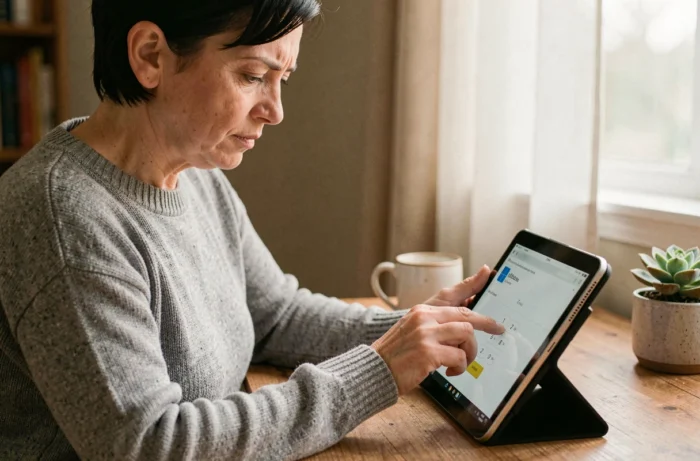
The procedure starts from a concrete situation: you have just purchased a PC or reinstalled Windows, and the system asks you to create a PIN. Here’s how to proceed if you skipped this step or want to change your code.
Accessing sign-in settings
Open Windows Settings (shortcut: Windows key + I). Go to Accounts, then Sign-in options. Under Windows 11, the section is called PIN (Windows Hello).
Click on Add or Change depending on your situation. Windows will first ask for your Microsoft password to verify your identity before allowing you to set the PIN.
Choosing an effective PIN
By default, Windows offers a numeric code. Check the box “Include letters and symbols” to enhance security. A six-character PIN combining numbers and letters is sufficient in most cases.
- Avoid obvious sequences (1234, 0000) or your date of birth, as Windows accepts them but they remain vulnerable in case of physical access to the device
- Do not reuse your Microsoft password as a PIN, as this would negate the purpose of separating the two mechanisms
- Enable facial recognition or fingerprint scanning as a supplement if your device allows it; the PIN will then serve as a backup method
Forgotten or blocked PIN: concrete remedies
A blocked PIN after several incorrect attempts often causes unnecessary panic. Windows displays a restart message, and upon reboot, it usually offers to enter the Microsoft account password instead.
If the Microsoft password works, you can then reset the PIN from Sign-in options. The procedure deletes the old code and creates a new one, still linked to the same device.
In case of simultaneous forgetting of both the PIN and the password, recovery goes through Microsoft’s online form. You will need access to the email address or phone number associated with your account to receive a verification code.
Feedback varies on this point: some users report that online reset works immediately, while others must wait several hours for the new password to sync to their device.
Migration to passwordless authentication: what the Windows Hello PIN prepares
Microsoft is actively pushing users towards passwordless authentication methods. The Windows Hello PIN is part of this strategy, alongside passkeys and the Microsoft Authenticator app.
For business accounts managed via Entra ID (formerly Azure AD), SMS and voice calls as a second authentication factor are gradually being phased out. Users still authenticated by SMS will eventually need to register a passkey when logging in.
For personal accounts, the trend is the same: SMS verification will be gradually reduced in favor of the Windows Hello PIN and passkeys. This means that the PIN, far from being a temporary option, is becoming a lasting pillar of Microsoft account security.
Passkey and PIN: complementary mechanisms
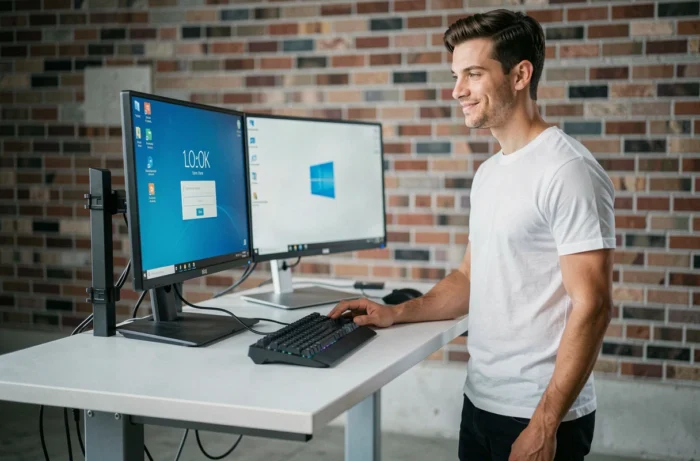
A passkey works with the device’s biometrics or PIN. Specifically, when you validate a passkey on your PC, Windows Hello asks for your fingerprint, face, or PIN. The PIN is not replaced by the passkey; it serves as the backup lock.
For organizations, this architecture simplifies management: a single local mechanism (PIN + TPM) serves as the foundation for multiple strong authentication methods. Administrators can enforce a minimum PIN length and prohibit simple sequences through group policies.
The Microsoft PIN is not a superfluous constraint that Windows imposes out of whim. It is a local security mechanism that protects access to your machine without exposing your credentials over the network. With the planned withdrawal of SMS as an authentication method, setting up a strong PIN now prepares your account for the verification methods that will replace the old ones.