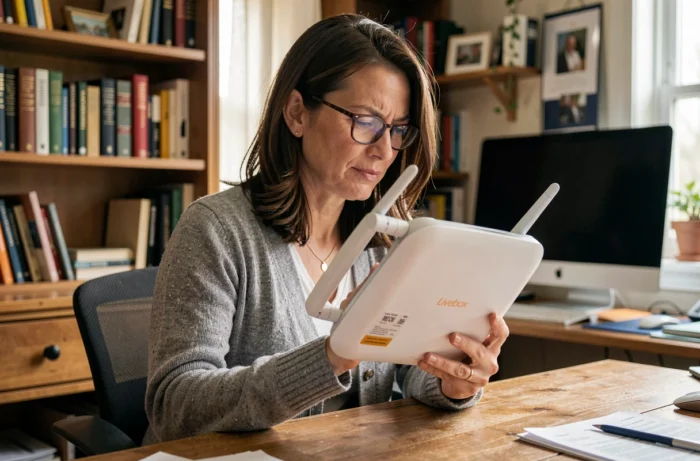
The wifi password for the Orange Livebox is information that every subscriber looks for at least once, often when connecting a new device. Depending on the model of Livebox installed at your location, the methods to retrieve this security key vary significantly. Physical label, touchscreen, web interface, mobile app, QR code: each channel has its advantages and limitations, which directly depend on the generation of your box.
Methods to recover the wifi password based on the Livebox model
Not all Liveboxes provide access to the wifi key in the same way. The table below summarizes the available channels based on the model.
| Method | Livebox 4 | Livebox 5 | Livebox 6 | Livebox 7 |
|---|---|---|---|---|
| Label stuck under the box | Yes | Yes | Yes | Yes |
| Touchscreen of the box | No | Yes | Yes | Yes |
| Interface 192.168.1.1 | Yes | Yes | Yes | Yes |
| Orange and Me app | No | No | Yes | Yes |
| QR code displayed on the screen | No | No | Yes | Yes |
On older models, the label remains the only quick access to the default wifi key. It is located under the Livebox or at the back, depending on the version. The network name (SSID) starts with “Livebox-” and the security key consists of numbers and letters, in uppercase or lowercase.
To easily find the access to the Orange Livebox wifi password, you must first identify your model, as the available options depend directly on it.
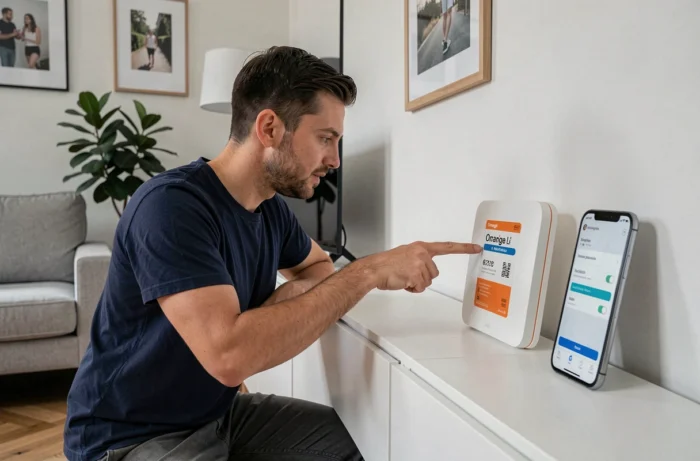
Livebox wifi key from the touchscreen and QR code
The Livebox 5, 6, and 7 have a touchscreen that displays the wifi security key without needing a computer. Navigation differs slightly between models.
Livebox 5
Select “Wifi,” then “Security Key.” The network name and key are displayed directly on the screen.
Livebox 6 and 7
Select “Wifi,” then “Connect a device,” then “With the security key.” The screen displays the SSID and the full key.
On these two recent models, a wifi connection QR code also appears on the touchscreen. Scanning it with a smartphone allows the device to connect automatically to the network without needing to type the key manually. This QR code is a practical solution when you no longer remember the password: once reconnected, you just need to check or modify the key in the interface or app.
Finding the wifi key via the interface 192.168.1.1
The web administration interface remains the most comprehensive method, available on all generations of Livebox. It allows you to view the current key, modify it, and change the encryption type.
- Open a browser on a device connected to the Livebox (via wifi or Ethernet cable) and type 192.168.1.1 in the address bar.
- Log in with the administration password. By default, on recent models, this password corresponds to the first eight characters of the wifi key printed on the label.
- Go to the “Wifi” section to display the SSID and the security key in plain text, or to customize them.
A point often overlooked: the default administration password corresponds to the first 8 characters of the wifi key. Finding one means finding the other. If you have changed the administration password without noting it, resetting the Livebox restores the factory values (press the Reset button for a few seconds).
However, resetting also removes any customization of the wifi network: name, modified key, channels, filtering. Therefore, you will need to reconfigure everything after the operation.
Orange and Me app: managing Livebox wifi remotely
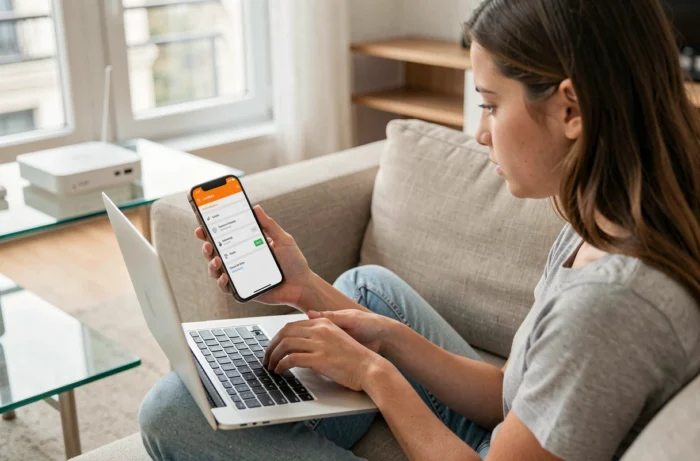
Since the Livebox 6 and 7, the Orange and Me app (or MySosh for Sosh subscribers) allows you to manage the wifi directly from a smartphone or tablet, without going through the 192.168.1.1 interface or the touchscreen.
The “Wifi” section of the app displays the current security key and allows you to customize the wifi key from the mobile app. Changes are applied in real-time on the Livebox. This is the simplest method for someone who is not near the box or prefers not to manipulate the web interface.
This option is not available on the Livebox 4 and 5. For these models, the 192.168.1.1 interface remains the only way to modify the key remotely (provided you are connected to the local network).
Modified or lost wifi password: what to do concretely
When the wifi key has been customized and no one remembers it, the situation differs depending on whether you still have a device connected to the Livebox or not.
- If a computer or smartphone is still connected to the network: access the interface 192.168.1.1 from that device to view the current key in the wifi settings.
- If no device is connected: connect a computer via Ethernet (RJ45 cable) to the Livebox, then access 192.168.1.1 to find or modify the key.
- If the administration password has also been changed and forgotten: resetting the Livebox restores the original wifi key, the one printed on the label.
After a reset, all previously associated devices will need to be reconnected with the default key. Be sure to note the new key if you customize it again.
The wifi password for the Orange Livebox follows a simple logic: each generation of box adds an additional recovery channel (screen, QR code, app). The physical label remains the last safety net on all models, and the first eight characters of this key also open the administration interface. Two pieces of information to keep in mind to never get stuck in front of a login screen again.